


Microsoft Designer
3.9409.00 Reviews
App Specs
- Version
- 1.2604204.7002
- Updated On
- License
- Free
- Downloads
- 5,000,000+
- Developer
- Microsoft Corporation
- Categories
- Art & Design
- Platform
- Android, iOS
Screenshots
 Analysis by AppCompare
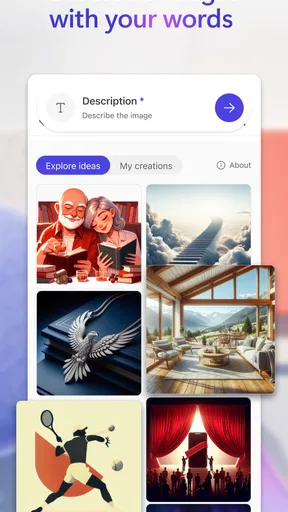
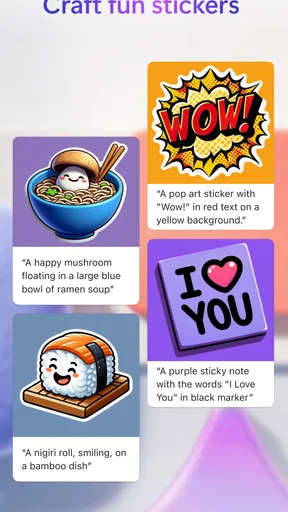
I tend to trust a creative app more when I know what I’m asking it to do and can review the result before sharing it. That matters especially when a design includes a face, a personal photo, or wording meant for customers. Microsoft Designer is an AI-assisted art and design app from Microsoft Corporation, and its appeal is the quick path from an idea to a finished-looking image. I find it most useful when I treat that speed as a starting point, not a reason to skip checking the details.
What to consider before you create
AI can make a design feel effortless, but the subject and context still matter. Before using a personal photo or writing a prompt that includes sensitive details, I pause and ask whether that information is necessary for the image. For a public event graphic, for example, a broad description of the setting is usually enough; adding someone’s full name or private circumstances may not improve the design at all.
I also make a quick review part of the workflow: check faces, spelling, visual emphasis, and whether the result gives the right impression. That is useful with any image-making tool, but it is especially important when generated content is going to represent a business or another person. A polished look is not the same as a verified or appropriate result.
Control comes from the choices you make
I would approach the app with clear, modest prompts and keep the first result editable in my mind rather than treating it as final. If a design is close but not quite right, changing the wording or simplifying the request can be more effective than piling on extra instructions. This also makes it easier to see which parts of the result reflect my intention and which need a manual correction.
For work that involves other people, I’d share a draft for feedback before publishing it, particularly if the image uses a real person’s likeness or communicates something important. That is a practical way to keep a human decision-maker in the loop. I would also avoid putting confidential business material into a creative prompt unless I had checked the relevant account and privacy controls for my own situation.
First Impressions
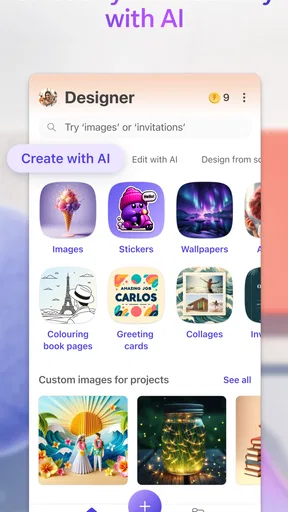
Opening up Microsoft Designer is like stepping into a creative workspace that’s both welcoming and robust. The interface is clean and intuitive, which is great for someone like me who can get easily overwhelmed with too many buttons and options. It doesn't drown you in features but provides just the right amount to get you started on your creative journey.
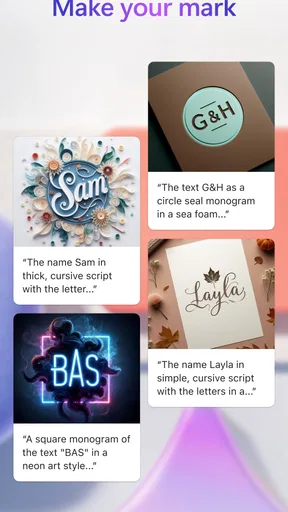
The app greets you with a selection of templates that cater to a variety of needs—from social media posts to business presentations. If you’re like me and occasionally find yourself staring at a blank canvas with no idea where to start, these templates are a lifesaver.
Worth Reading Before You Choose

EA SPORTS FC Mobile 26 Is a Bigger Football Game, but It Takes Time

Flipboard Shows What News Apps Must Do Beyond the Feed

Switching to Android Auto Means Rethinking Your Driving Routine

Google Calendar Makes a Crowded Week Easier to Manage

Ludo King Makes the Most of the Minutes Between Plans

Baby Panda World Brings Quick Play to Modern Phones, but Its Game Library Feels Busy
Getting Creative
Diving into the design process, I found the drag-and-drop functionality to be incredibly smooth. Elements snap into place, and resizing them feels natural. You don’t need to be a design wizard to make something that looks like it came out of a professional studio.
There’s a wide array of fonts and color palettes to choose from, and if you’re feeling particularly adventurous, you can mix and match to your heart’s content. The app also offers suggestions based on your design to help you maintain a cohesive look, which I found particularly handy.
Features That Stand Out
One of the standout features for me was the integration with other Microsoft Office apps. If you’re already embedded in the Microsoft ecosystem, you’ll find this seamless connection a real time-saver. You can import data from Excel directly into your design or add a PowerPoint slide with just a few clicks. This level of integration is a game-changer, especially for professionals who need to juggle multiple tools.
Another feature that deserves a shoutout is the collaborative aspect. Sharing your designs for feedback is straightforward, and the real-time updates ensure that everyone is on the same page. It reminds me of Google Docs, but with a flair for creativity.
Room for Improvement?
No app is perfect, and Microsoft Designer has its quirks. While the templates are a great starting point, I found myself wishing for a bit more variety. I mean, variety is the spice of life, right? Also, while the app is mostly intuitive, there were moments where I had to dig around to find certain tools. A more robust tutorial or help section could go a long way in smoothing out these small bumps.
Another thing to keep in mind is that while the app is powerful, it might not satisfy the needs of advanced users looking for more in-depth design features. If you’re someone who loves diving into the nitty-gritty of graphic design, you might find yourself reaching for more specialized software.
Choosing it for the right job
I see the strongest fit in small, repeatable tasks where a good visual is useful but a custom art direction is not essential. Think of a club organizer making a notice for a weekend event, a shop owner preparing a simple seasonal post, or a parent putting together an invitation. In those cases, a template gives the project structure, while the editing tools let you adjust the text and appearance without starting from scratch.
A realistic example: I need to announce a community bake sale after work, and I have only a few minutes before sending the details to the group. I would choose a suitable template, replace its headline and practical information, then inspect the result on a phone-sized screen. I’d check that the date and location are easy to spot, that the decorative imagery does not compete with them, and that no leftover sample wording remains. That final check is more valuable than trying to make every element elaborate.
The app is also a reasonable choice when I want to explore visual directions quickly. I can compare a restrained layout with a brighter one before settling on a style. But if the project depends on exact brand rules, precise typography, or carefully controlled illustration, I’d rather use a dedicated design program where I can manage those details deliberately.
How it fits beside other design tools
Compared with a basic photo editor, Designer is more useful when the job is to assemble a complete graphic from text, imagery, and a layout rather than simply crop or adjust a picture. Compared with professional desktop design software, it is less intimidating and better suited to quick everyday output, but it does not replace the fine control that experienced designers may need. The trade-off is straightforward: less setup and a gentler learning curve in exchange for fewer ways to tune every detail.
For someone already working with Microsoft tools, the connection to that ecosystem can make it feel like a natural companion for lightweight visual tasks. For someone who mainly needs to retouch photographs, a photo-focused editor is likely a better fit. If collaboration is the priority, I’d consider how the team already shares and reviews files rather than assuming a design app alone will solve the whole process.
One useful habit is to settle the message before exploring decorative options. A short headline and a clear call to action give the layout a purpose; otherwise, it is easy to spend time adjusting colors while the core information remains vague. I also try one small change at a time. That makes it easier to judge whether a font, palette, or placement actually improves readability instead of merely making the design busier.
Cost, access, and expectations
Designer is free to install, with in-app purchases ranging from $1.99 to $199.99 per item. I would check what a particular purchase offers before spending, especially if I only need the app for occasional personal projects. The free entry point makes it easy to try the workflow, but it does not mean every paid option will be useful to every person.
The app is rated for Everyone and requires Android 9 or later. It was released on June 18, 2024, and its current version is 1.2604204.7002. Those details are useful when checking whether it suits a device, but they don’t tell me how well a specific phone will handle every task. Microsoft Designer has a 3.6 average from around 8,100 ratings and over 1 million installs; I take that as a reason to try it for my own needs rather than assuming every user will have the same experience.
Before relying on it for a deadline, I would test the exact task I plan to do: create a draft, make a small revision, and confirm that the finished result can be used in the way I need. That simple trial answers more than a general impression can. It also helps me decide whether the app’s pace and controls suit my habits before I build a regular workflow around it.
The Final Verdict
So, is Microsoft Designer worth your time? Absolutely, especially if you’re looking for a user-friendly tool that doesn’t compromise on quality. It’s perfect for quick projects and offers enough features to keep most users happy.
Whether you’re a small business owner needing to whip up a quick flyer or a social media manager looking for the next eye-catching post, this app can be a valuable addition to your toolkit. It’s not just about creating designs; it’s about unleashing creativity without the headache of complex software. Give it a try—you might just find it’s the design partner you never knew you needed!
My cautious recommendation
I’d recommend giving it a go if your usual design needs are practical, occasional, and more about communicating clearly than producing original artwork from the ground up. The app’s 3.6 average rating is a reminder that convenience does not make it a perfect fit for everyone, and the template variety and occasional tool-finding friction may matter if you use it heavily.
I would skip it as my main tool for detailed professional production, strict brand work, or sensitive material that I’m not comfortable entering into an AI-assisted workflow. For a quick invitation or a draft social graphic, though, it offers an approachable place to begin. My advice is to try one low-stakes project, review the result carefully, and decide from that experience whether its balance of speed and control works for you.
Pros
- Intuitive drag-and-drop interface.
- Seamless integration with Microsoft 365.
- Rich library of templates.
- Real-time collaboration features.
- AI-powered design suggestions.
Cons
- Limited customization options.
- Requires Microsoft account login.
- Occasional lag on older devices.
- Subscription needed for premium features.
- Limited offline functionality.
FAQs for Microsoft Designer
What is Microsoft Designer and what does it do?
Microsoft Designer is a graphic design application that allows users to create visually appealing designs with ease. It offers a wide range of templates, fonts, and design elements tailored for everything from social media posts to marketing materials. The app aims to simplify the design process, making it accessible even to those without prior design experience.
Is Microsoft Designer available for both Android and iOS platforms?
Yes, Microsoft Designer is available for download on both Android and iOS platforms. The app is designed to provide a seamless experience across devices, allowing users to work on their designs on the go. It can be found on both the Google Play Store and the Apple App Store.
Does Microsoft Designer require a subscription or is it free?
Microsoft Designer offers a freemium model. Users can access basic design tools and templates for free, while more advanced features and premium content are available through a subscription. This allows users to try the app without commitment and decide if the additional features are worth the investment.
What level of design expertise is needed to use Microsoft Designer?
Microsoft Designer is designed for users of all skill levels. The app features an intuitive interface with drag-and-drop capabilities, making it easy for beginners to create professional-looking designs. For more experienced designers, it offers advanced tools and customization options to enhance their projects.
Can I collaborate with others using Microsoft Designer?
Yes, Microsoft Designer supports collaboration features. Users can share their projects with others for feedback or co-editing. This is particularly useful for teams working on collective projects, as it allows multiple users to contribute and refine designs in real-time, enhancing productivity and creativity.


